Working from Home? Stay Secure with These 8 Essential Tips
Remote work has become the new normal, but it comes with new security risks. Your home network lacks the enterprise-grade protection of the office. Cybercriminals know this and are increasingly targeting remote workers. Here are 8 essential tips to stay secure. Phishing attacks and social engineering are far more effective against isolated remote workers who cannot quickly verify requests with colleagues.
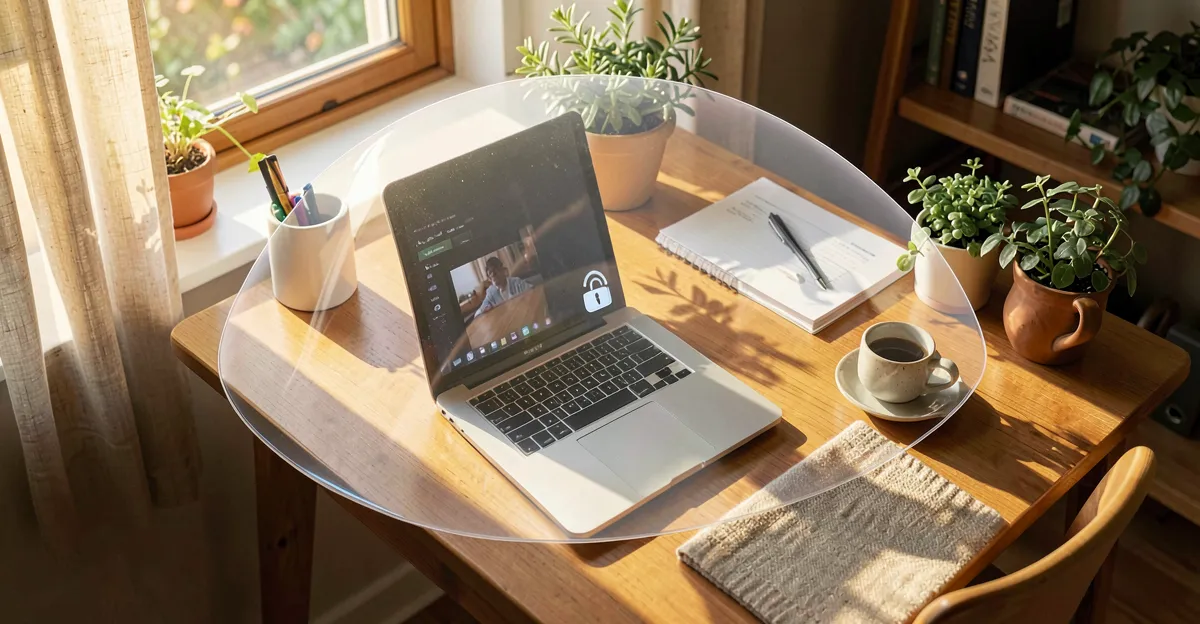
Secure Your Home WiFi
Your home WiFi is the gateway to all your work data. A weak network is an open door for attackers.
- Use WPA3 encryption (or WPA2 if WPA3 is not available)
- Set a strong, unique password for your WiFi (at least 12 characters)
- Change the default router admin password
- Update your router firmware regularly
- Consider a separate network for work devices
Always Use Company VPN
A VPN encrypts your internet traffic and protects your data from eavesdropping, especially on shared or public networks.
- Connect to VPN before accessing any work resources
- Keep VPN connected throughout your workday
- Never transmit sensitive data without VPN active
- Report VPN issues to IT immediately
Keep Work and Personal Separate
Mixing work and personal devices increases the attack surface. A compromised personal device can lead to a work data breach.
- Use a dedicated work device for work tasks
- Do not install personal apps on work devices
- Keep separate browsers or profiles for work
- Avoid using personal email for work communication
Lock Your Screen When Stepping Away
An unlocked computer is an invitation for unauthorized access, whether from family members, visitors, or intruders.
- Press Windows+L (Windows) or Control+Command+Q (Mac) to lock
- Set automatic screen lock after 2-5 minutes of inactivity
- Use a strong password or biometric authentication
- Make screen locking a habit, every time you stand up
Use Encrypted Communication Tools
Not all messaging and video tools are equally secure. Use company-approved tools with end-to-end encryption for sensitive discussions.
- Use approved tools like Microsoft Teams, Slack, or Zoom (configured securely)
- Verify meeting links before joining
- Use waiting rooms and passwords for video calls
- Avoid discussing confidential information on personal messaging apps
Back Up Your Work Regularly
Ransomware and hardware failures can happen anywhere. Regular backups ensure you do not lose critical work.
- Save work files to company cloud storage (OneDrive, SharePoint)
- Enable automatic sync for important folders
- Verify backups are working periodically
- Do not rely solely on local storage
Be Extra Vigilant About Phishing
Remote workers are prime targets for phishing. Without colleagues nearby to verify requests, you are more vulnerable to social engineering.
- Verify unexpected requests via phone or separate channel
- Check sender email addresses carefully
- Hover over links before clicking
- Report suspicious emails to IT
- See our detailed phishing guide for more tips
Secure Your Physical Workspace
Digital security is important, but so is physical security. Sensitive information on your screen or desk can be seen by others.
- Position your screen away from windows and doorways
- Use a privacy screen filter for sensitive work
- Lock away physical documents when not in use
- Be aware of your surroundings during video calls
- Shred sensitive documents before disposal
Remote Work Security Checklist
Use this checklist to ensure your home office is secure: Make sure to use strong passwords and enable two-factor authentication on every account.
Secure Your Remote Workforce
Easy Cyber Protection helps you with a complete approach to protect your remote workforce from cyber threats.
Frequently Asked Questions
Do I really need a VPN if I am just working from home?
Yes. A VPN encrypts your traffic and protects sensitive company data, even on your home network. Your ISP can see your traffic without a VPN, and your home network may have vulnerabilities you are not aware of.
Can I use my personal laptop for work?
It is not recommended. Personal devices may have outdated software, lack security tools, or be infected with malware. If you must use a personal device, ensure it meets your company security policy and is regularly scanned.
How do I know if my WiFi is secure?
Check your router settings for WPA3 or WPA2 encryption. Ensure you have changed default passwords, updated firmware, and use a strong WiFi password. Consider running a network security scan.
What should I do if I suspect a security breach?
Disconnect from the network immediately, do not turn off your device (preserve evidence), and contact your IT team right away. Document what happened and when. Time is critical in containing breaches.
Is it safe to work from a coffee shop or coworking space?
Public WiFi is risky. If you must work in public, always use VPN, avoid accessing sensitive systems, use a privacy screen, and be aware of shoulder surfing. Consider using mobile data instead of public WiFi.
Related Articles
Sources
- Safeonweb.be — Centre for Cybersecurity Belgium (CCB)
- ENISA — EU Agency for Cybersecurity
- CISA Telework Best Practices — US cybersecurity agency guidance