Risks
The Risks tab is where the compliance work shows up as work. Run an assessment to discover what could go wrong, browse confirmed risks by treatment, and plan the actions on a sprint Kanban.
Three sub-tabs
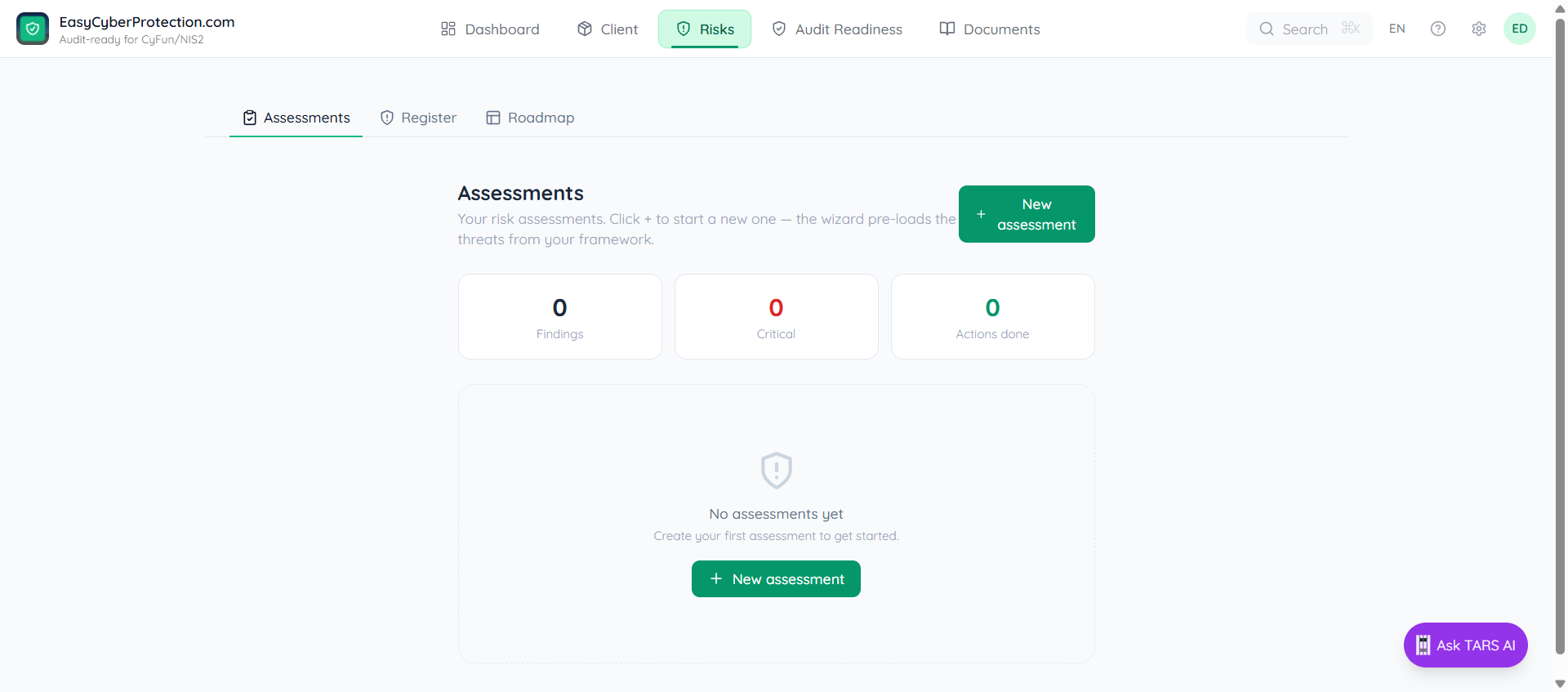
- Assessments — your risk assessments, with stats for findings, criticals, and actions done. Open the Hub to triage every candidate finding
- Register — every confirmed risk across all assessments, grouped by treatment (Mitigate / Avoid / Transfer / Accept), with CSV export
- Roadmap — a five-column sprint Kanban (Backlog / Sprint 1 / Sprint 2 / Sprint 3 / Done) for the actions that address your confirmed risks
CCB maturity scoring (the official 1–5 D + I sliders the auditor grades on) lives on Audit Readiness, not here.
Where the rows come from
When you create an assessment with the default "All findings" option, the wizard pre-loads every risk, gap, and recommended action your framework ships with. CyFun Basic ships ~12 candidate findings + ~12 actions — Important and Essential ship more.
You don't add rows; you triage them. Findings start as candidate and become real risks once you confirm them. Actions start as planned in Sprint 1 and become real work once you assign and schedule them. The wizard's Blank option exists if you want to start empty and add findings manually in the wiki — most people don't need it.
When does my work persist?
- Assessments → Hub triage — local until you click Save changes at the top right. Don't navigate away mid-batch.
- Register — inline edits to tags, owner, remediator, notes save on blur.
- Roadmap — drag-and-drop persists on drop. No Save button.
Assessments
An assessment is a wiki-backed log of everything that could go wrong: each row is either a risk (something that might happen) or a gap (something missing today). Click + New assessment to start one — the wizard pre-loads every threat and gap your framework knows about, so you triage rather than start from a blank page.
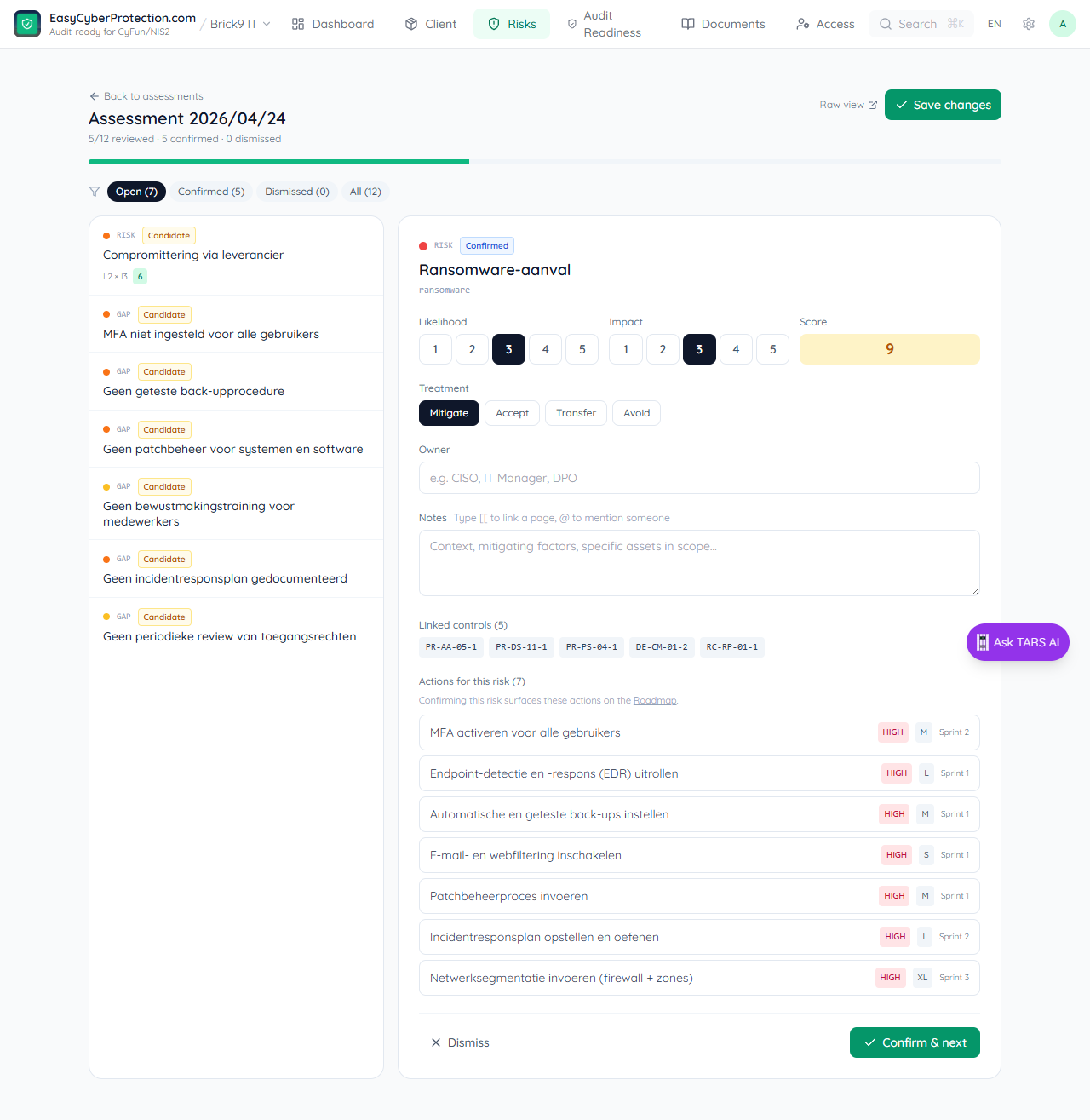
The Hub view — triage findings one by one
The Hub presents one finding at a time with the rest in a left column. For each row, set Likelihood 1–5, Impact 1–5, pick a Treatment (Mitigate / Accept / Transfer / Avoid), assign an Owner, leave notes, and click Confirm & next. Linked controls are pre-filled by the framework.
Below the linked controls, an Actions for this risk panel lists every framework-shipped action that addresses the selected finding — with priority, effort, and sprint badges. Picking Mitigate isn't an abstract decision; this is the concrete work you commit to. Click any row to open the action's detail page on the Roadmap.
Click Save changes before you leave
Triage edits in the Hub are kept in the page until you click the green Save changes button at the top right. Confirm & next moves to the next row but does not persist on its own — closing the tab or navigating away mid-batch loses the batch. Save once at the end of a triage session and every confirmed row appears in the Register.
Register
The Risk Register is a derived view: every confirmed risk across all your assessments, grouped by treatment. Edit a row by opening its source assessment page (the external-link icon in the rightmost column).
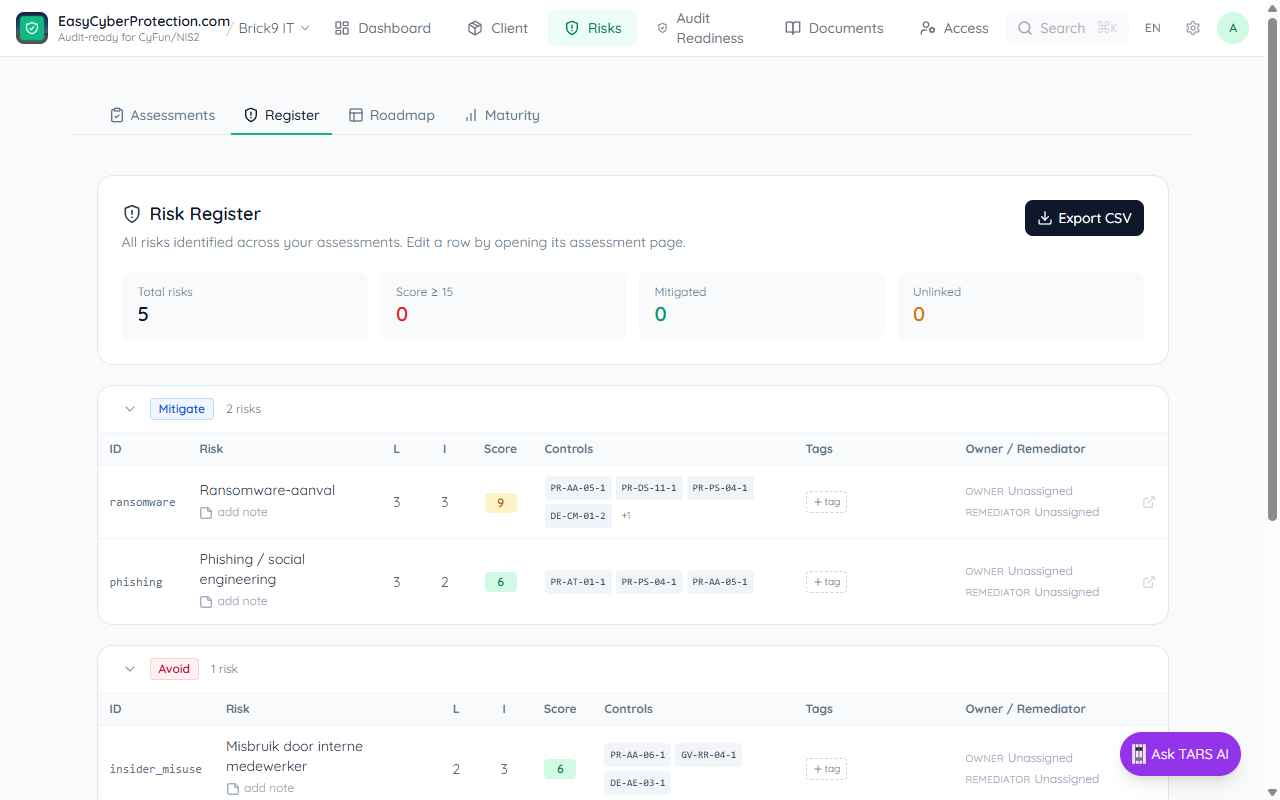
- Score = Likelihood × Impact, color-coded (red ≥ 15, amber ≥ 8, green ≥ 1)
- Controls column shows the controls each risk is linked to. Click any chip to open that control's wiki page
- Tags, Owner, Remediator, Notes are inline-editable in the row — no need to open the assessment to update them
- Unlinked KPI counts risks with no controls attached. An unlinked risk has no treatment plan; open it and link the controls it addresses
- Export CSV dumps the register for management reports or to attach to a quarterly review
Roadmap
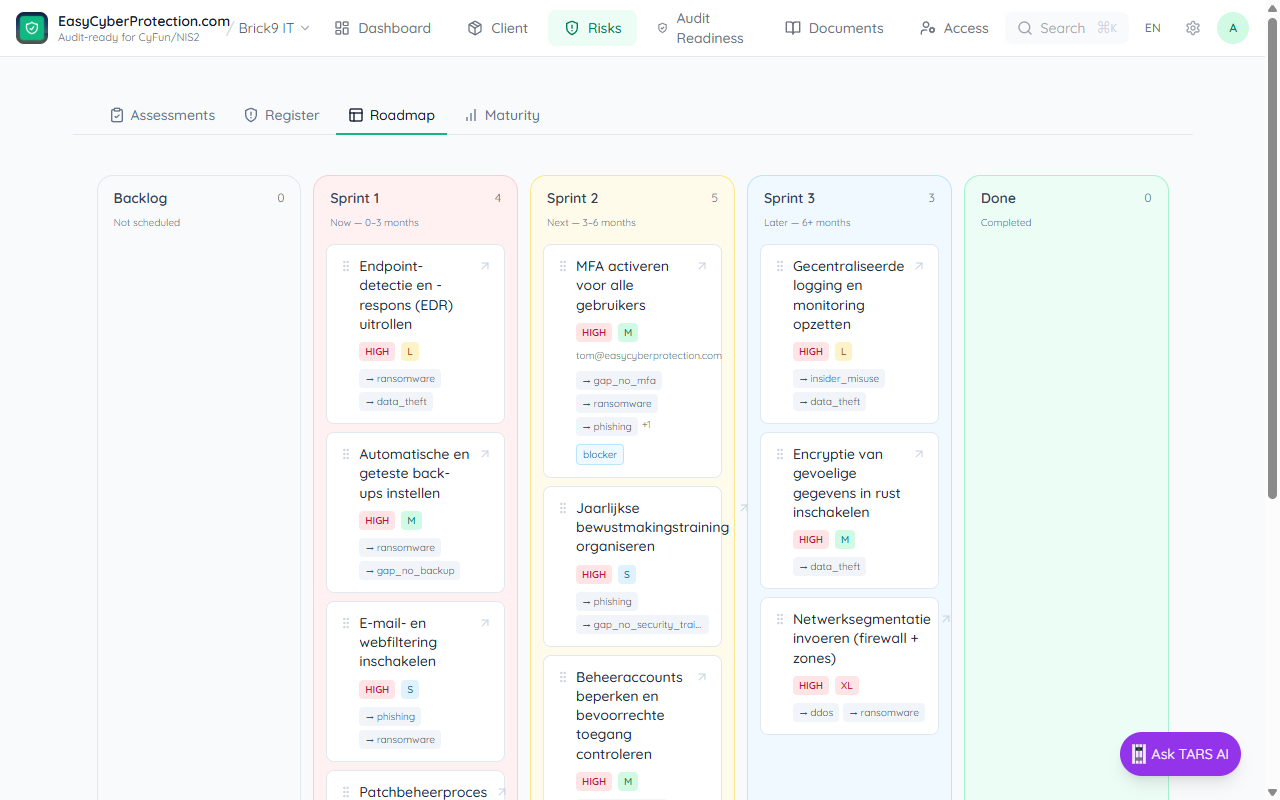
The Roadmap is a sprint Kanban over the actions on every active assessment page. Like the findings, actions are pre-loaded from the framework — for CyFun Basic that's a dozen recommended actions (deploy EDR, enable MFA, set up automated backups, run patch management, deliver awareness training, …) each pre-linked to the findings it addresses. You don't usually add actions by hand: you re-prioritise the ones that came in the box.
Actions surface as you confirm risks
An action only shows on the Roadmap once at least one of the risks it addresses has been confirmed on the Hub (or marked mitigated / in progress). Actions tied to candidate or dismissed findings stay invisible — a Roadmap full of work for risks you haven't decided are real is just noise. Done actions stay visible regardless, so completed work is never hidden.
Drag a card across columns to change its phase, or drop it on Done when the work is finished. Phase changes persist immediately — no Save button.
| Column | Means | Phase / status |
|---|---|---|
| Backlog | Not scheduled — discovered but not yet committed | phase null · planned |
| Sprint 1 | Now — work to do in 0–3 months | phase 1 · planned |
| Sprint 2 | Next — 3–6 months out | phase 2 · planned |
| Sprint 3 | Later — 6+ months | phase 3 · planned |
| Done | Completed — closes the linked finding | status done |
Each card shows the action title, a HIGH / MEDIUM / LOW priority pill, an effort badge (XS / S / M / L / XL), the assigned owner, and small → finding-id chips back-pointing to the risks the action addresses. Click a card to open the action detail page where you edit owner, due date, priority and notes.
Where to find newly-added actions
Actions only appear on the Roadmap if they live on an active assessment page (under assessments/). Action blocks on policy or procedure pages stay visible on those pages but don't surface here — the Roadmap is "work derived from risk assessments", period.