Audit Readiness
Open the Audit Readiness tab to see the exact state a CAB auditor would find today. Each control shows whether the evidence will pass, and how mature it is on the CCB 1–5 scale.
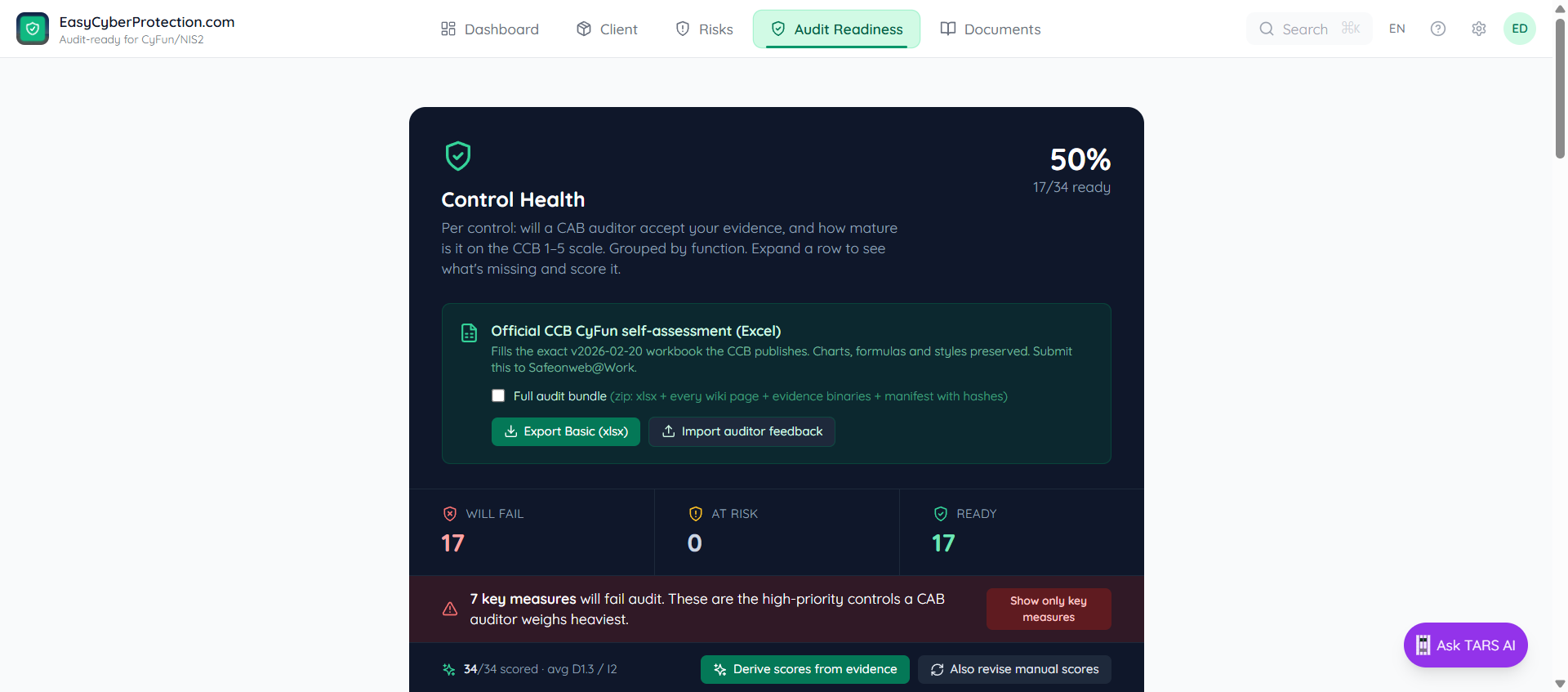
Three readiness buckets
- Will fail — the auditor will write this up as a non-conformity
- At risk — the auditor will probe further and may issue an observation
- Ready — evidence is attached and will pass the check
Why not a roadmap or to-do list?
Compliance tooling usually asks you to plan the work first — sprints, backlogs, owners, deadlines. That only helps if you already know what to fix. Real CAB audits fail not on missing plans but on missing, wrong, stale, or insufficiently-scoped evidence.
Audit Readiness skips the planning layer and shows exactly what an auditor would flag today, grouped by CyFun function (Govern, Identify, Protect, Detect, Respond, Recover), with a prescriptive next action per control. Fix it and the control moves to Ready on the next refresh.
How to use it: work top-down. Start with Will fail controls that carry the KEY tag, click the action, close the finding, move on. Reopen the tab weekly — integrations and evidence expire, so the buckets shift. When Will fail hits zero and At risk is close to zero, you're ready to request the audit.
The control list
Controls are grouped by CyFun function with per-function counts (9 will fail · 6 ready). Each row shows the CCB reference (e.g. PR.AA-05.3), the plain-English title, the shall-statement from the framework, and the current maturity scores D (documentation) and I (implementation). Controls flagged KEY are the ones a CAB auditor weighs heaviest.
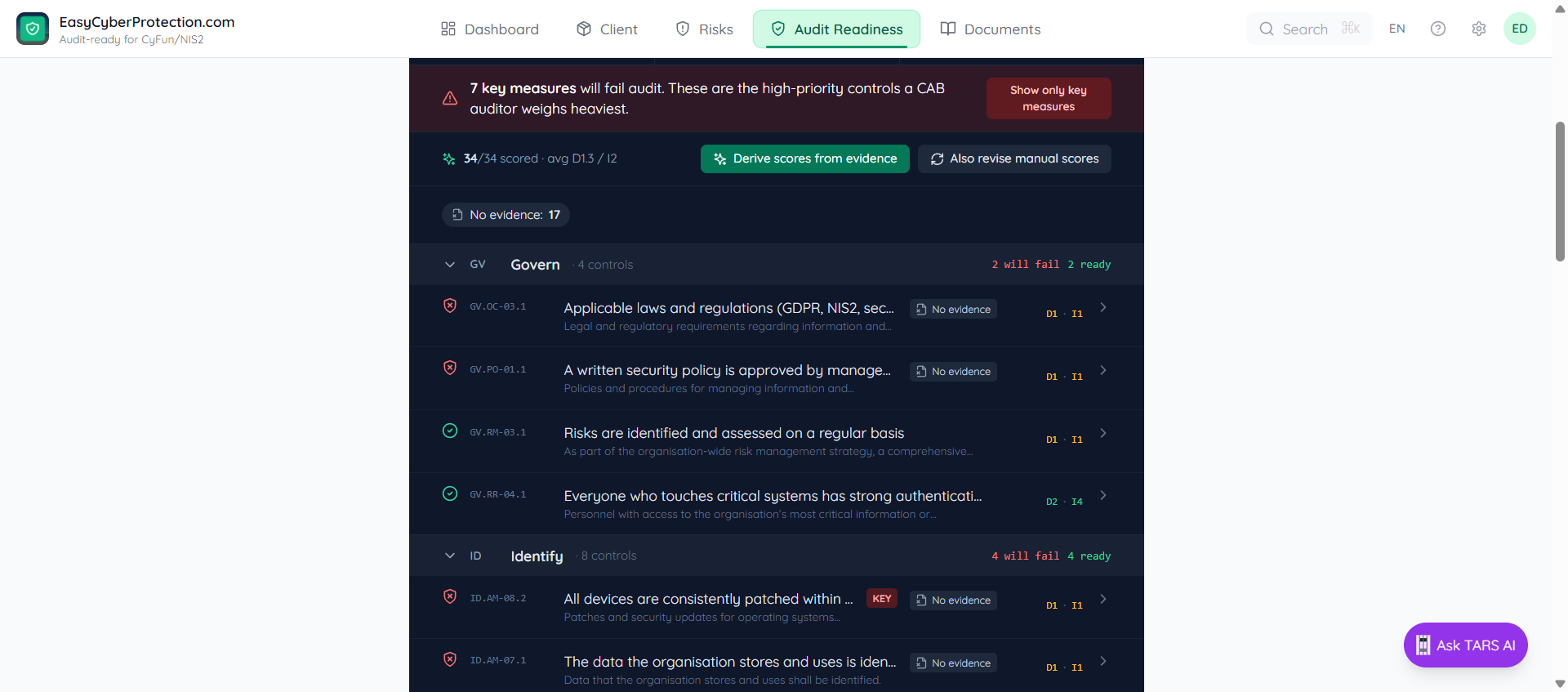
Above the list, three toggles pick what you see:
- Will fail / At risk / Ready buckets — click any combination
- Show only key measures — hide everything except KEY-tagged controls for a CAB-focused view
- No evidence: N — jump to the controls that have nothing attached yet
Expand a control to score and fix it
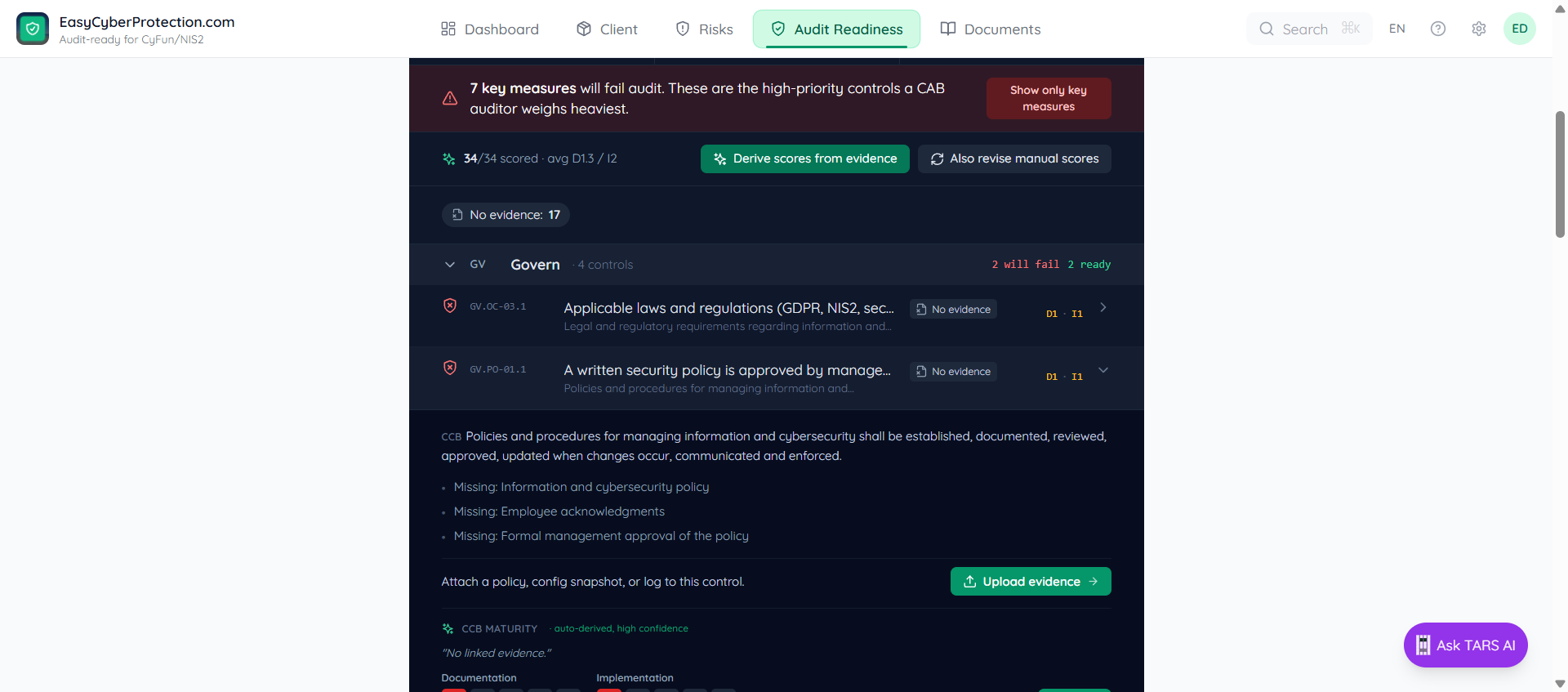
Click any row. The expanded panel shows the CCB shall-statement, the list of missing requirements (what's needed to pass), and an Upload evidence link that jumps to the control's evidence panel in Documents.
Below that is the CCB maturity panel: two sliders from 1 to 5 for Documentation (what you say you do) and Implementation (what you actually do). ECP auto-derives a suggested score from the evidence you have attached — click Accept to lock it in, or override the numbers manually. The CCB pass threshold is an average of D + I ≥ 2.5 per Key Measure.
The View assessment answer link jumps to the matching question on Risks → Maturity — useful when you want to change an answer that's driving the finding.
Derive scores from evidence
The Derive scores from evidence button recomputes D and I across every control, based on what's currently attached. Use this after a bulk evidence upload — for example, after a Microsoft 365 sync or a CSV import — so the maturity numbers catch up.
By default, derivation skips controls whose scores you previously accepted or set manually. Tick Also revise manual scores to overwrite those too — useful when the evidence picture has changed substantially (e.g. a new Risk Register replaces the old one).
Snapshot + history
The Snapshot button freezes the current state as a dated report wiki page (under reports/ in the Documents tab). Snapshots are immutable — once taken, they capture exactly which controls were Ready and which were failing at that moment, with the evidence list attached.
Use snapshots before major changes (framework tier bumps, re-scoping the estate, new evidence rollouts) so you have a paper trail of progress. The History (N) button opens a side panel listing all previous snapshots — click any entry to open the corresponding report.
At audit time, the auditor usually asks for the most recent snapshot. The Compliance Report entries under Documents → Reports are the snapshots you've taken.
Official CCB export — xlsx or zip
Below the control list sits the Official CCB CyFun self-assessment (Excel) section. It fills the exact v2026-02-20 workbook the CCB publishes — charts, formulas and styles preserved — so the file is the one a CAB auditor signs off on.
The export button labels itself to match your active tier (Export Basic, Export Important, or Export Essential). Above it is one checkbox:
Checkbox off — xlsx only
Workbook comments deep-link back into ECP. Send this when the auditor already has access to the platform.
Checkbox on — zip bundle
Comments rewrite to local paths (evidence/CCB-REF/…). The zip contains the xlsx, every linked artifact, and every wiki page (as markdown).
For what's inside the zip, see Exporting for your CAB auditor.
Pre-export readiness gate
When you tick Full audit bundle, a Pre-export readiness panel appears underneath the checkbox. It runs the same checks the bundle export endpoint applies, so you see the gaps before shipping.
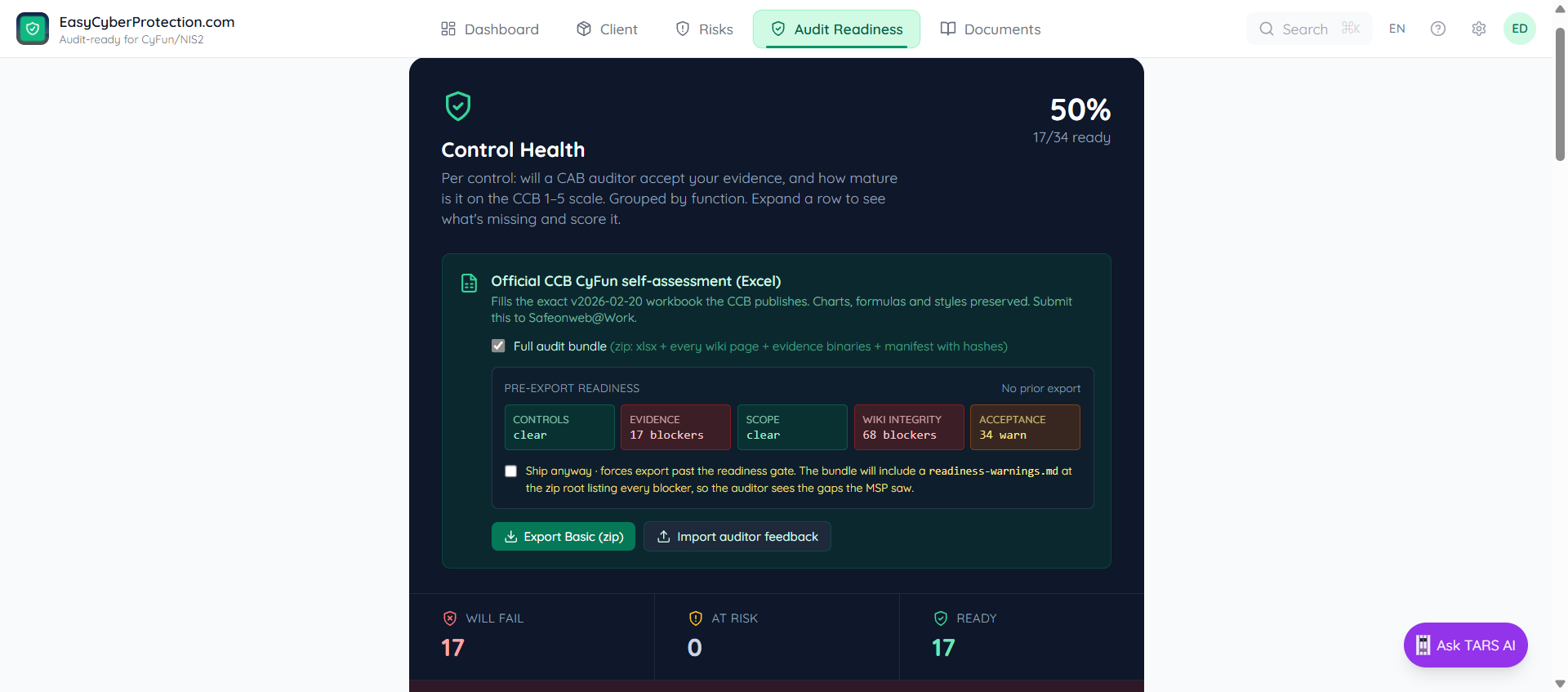
Five categories — each tile shows blocker + warning counts and rolls up to red / amber / green:
- Controls — controls in the framework that have no maturity score yet
- Evidence — controls bucketed Will fail (red) or At risk (amber), plus expired artifacts past their valid_until
- Scope — placeholder blocks where at least one entity in the inferred scope is uncovered
- Wiki integrity — outbound markdown links pointing at slugs that don't exist in this org's wiki
- Acceptance — auto-derived scores still flagged
user_accepted=0(you haven't reviewed them yet)
A small badge top-right shows X events since last export (date) — if that number drifts up, the bundle in your auditor's hands is going stale.
Ship anyway
When blockers exist, a Ship anyway checkbox appears. Tick it to force the export past the gate. The resulting zip embeds a readiness-warnings.md at its root, listing every category and its counts, so the auditor sees the same gaps you saw — and you have a paper trail of what you knowingly shipped past.
CSV, Excel, and the CAB share link
CSV produces a row per control — ID, bucket, missing-requirements list, D/I scores, KEY flag — ready to paste into a tracker or attach to a management report.
Excel produces a native .xlsx workbook with two sheets: a Summary (totals per bucket + per function) and a filterable Controls sheet with frozen headers. This is an ECP-native report, not the CCB submission format.
CAB share link generates a read-only URL you can send to an external auditor. They see the same page but cannot change anything. Revoke it from Settings when the audit is done.
Before sending the link
Confirm your Declared environment in the Client tab first. Population gaps (e.g. Graph sees 12 devices, you declared 83) are only flagged once the platform knows what all means.