Connecting NinjaOne Backup
Wire your NinjaOne Backup tenant into ECP so backup jobs and restore-test outcomes flow into the CyFun audit-readiness report.
When to use this
NinjaOne Backup is the right integration if you run NinjaOne for endpoint backup. A connected NinjaOne tenant feeds the audit-readiness report with evidence on:
- Backup conducted — devices covered, jobs run, jobs successful versus failed
- Backup tested — restore-test outcomes, separate from regular backup runs
Coverage applies to CyFun Basic, Important, and Essential. Restore-test evidence only counts for Important and Essential — Basic does not require tested recovery.
Generate a NinjaOne API app
In NinjaOne, go to Administration → Apps → API → Client app IDs and click Add. You'll need to set four things correctly — getting any of them wrong returns the same NinjaOne 404 error message, so it's worth slowing down here.
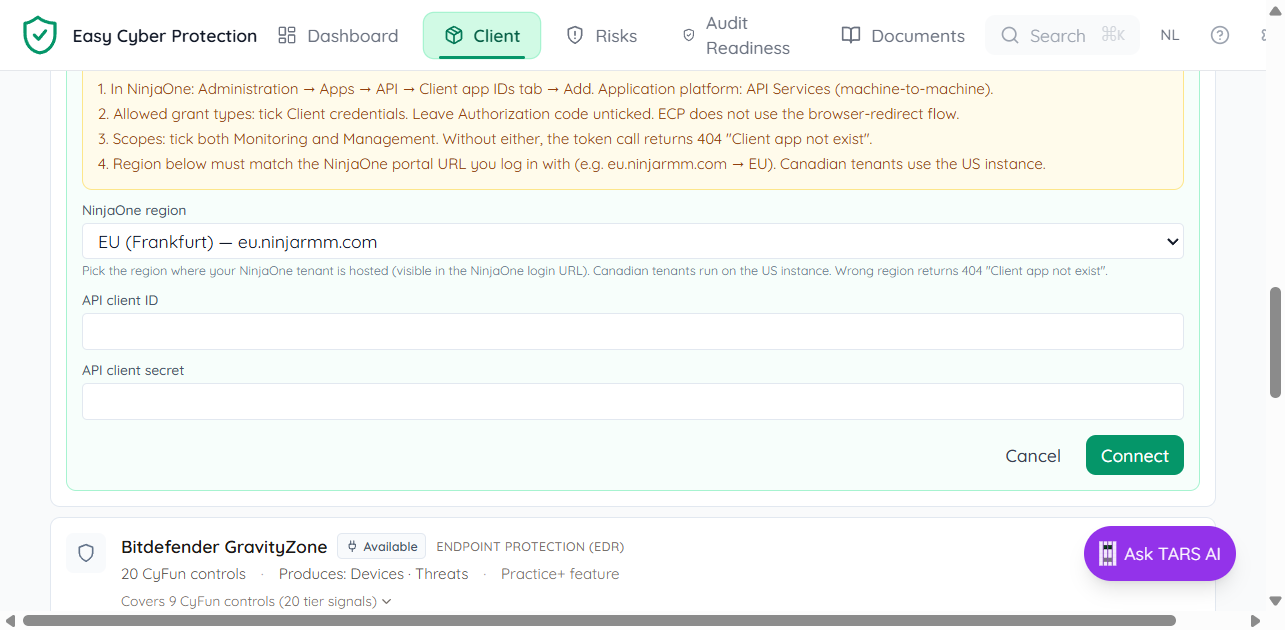
- Application platform: API Services (machine-to-machine). This exposes the Client credentials grant ECP uses.
- Allowed grant types: tick Client credentials. Leave Authorization code unticked. ECP doesn't use the browser-redirect flow, so the Redirect URI field is irrelevant.
- Scopes: tick both Monitoring and Management. Without either, the token call returns 404 "Client app not exist".
- Save the app, then generate a client secret. NinjaOne shows the secret only once — copy it somewhere safe before closing the dialog.
You'll also need the right NinjaOne region. Look at the URL you log in with: eu.ninjarmm.com is EU (Frankfurt), app.ninjarmm.com is US (and Canada — there is no Canadian data centre), oc.ninjarmm.com is Oceania.
Connect from the Client tab
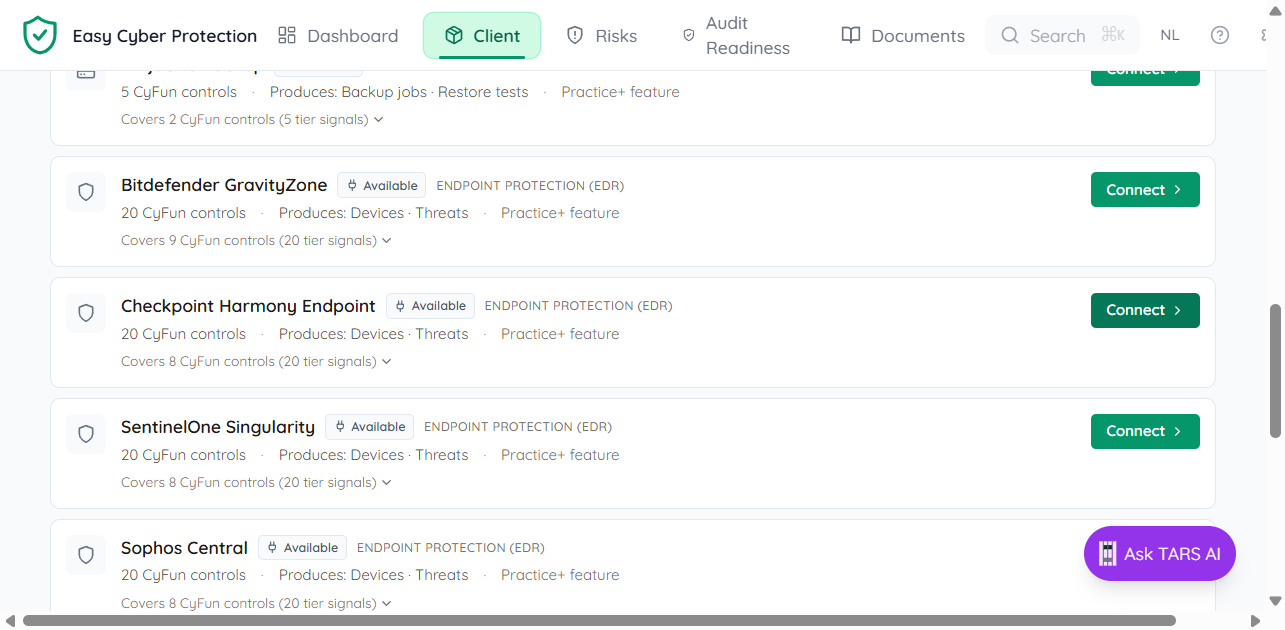
Open Client → Integrations. NinjaOne Backup appears in the marketplace under Backup. Click Connect.
The connect form shows the same four-step checklist above the fields, so you don't have to flip back to this page mid-setup. Pick the region, paste the Client ID and Client secret from NinjaOne, and click Connect. ECP exchanges the credentials for an access token and writes the first sync immediately.
Verify the sync
After connecting, the row shows connected with a "Last sync" timestamp. The audit-readiness panel updates within a few seconds — backup-conducted and restore-tested controls pick up evidence automatically.
Each sync writes a system-managed wiki page under Documents → Integrations → NinjaOne. Open the latest one to see per-device backup status and the restore tests recorded against your servers.
Backup and RMM share one card
The NinjaOne card in ECP covers two modules: Backup (jobs + restore tests) and RMM (OS patches, third-party patches, antivirus state, condition alerts). On the connect form there are checkboxes for each — tick the modules you want, paste your API credentials once, and ECP wires up both behind the scenes. You can come back and toggle a module on or off later.
If your tenant doesn't have NinjaOne Backup licensed, the Backup module will authenticate but the /v2/backup/* calls return 403 — that's a sign the Backup add-on isn't enabled for the tenant, not a configuration error in ECP. RMM works on every NinjaOne tenant.
Refresh cadence
Each sync is timestamped and valid for 30 days as evidence. Re-sync at least monthly — sooner if you've just changed your backup policy or the audit window is approaching. The refresh icon next to "connected" runs a sync on demand.
If the connect call fails
NinjaOne returns 404 "Client app not exist" for three different setup mistakes — same body for each, so the message is ambiguous on purpose. Check, in order:
- Is the region in ECP the same as your NinjaOne login URL?
- In the NinjaOne API app, is Client credentials ticked (and Authorization code unticked)?
- Are both Monitoring and Management scopes ticked?
If all three look right, regenerate the client secret in NinjaOne and reconnect — secrets occasionally get pasted with a trailing newline that breaks the basic-auth header.