Documents
The Documents tab is your built-in wiki — every policy, procedure, register, plan, assessment, and report lives here. The same folder tree is what ends up in a CCB evidence bundle.
What's in the tree
- Organisation Profile — your brand name, language, and org-wide metadata (top of the tree)
- Policies — Security, Access Control, Asset Management, Awareness Training, Backup, Cybersecurity, Network Security, Password, Risk Assessment
- Procedures — operational step-by-steps (Incident Response, Change Management, Patching, Backup & Recovery, Security Monitoring)
- Registers — the live logs that count as ongoing-work evidence (Risk, Vulnerability, Supplier, Incident, Tabletop, Training, Phishing, Backup test, Change, Policy review, Employee onboarding)
- Reports — compliance snapshots, evidence gaps, quarterly business review, statement of applicability
- Intake & Assessments — intake assessment answers plus the current compliance-process page per tier
- Plans — Business Continuity & Disaster Recovery, Getting Started
- Governance — Risk Appetite Statement, Risk Treatment Plan
- Getting Started — onboarding pages (Determine Your CyFun Level, Changing your level, Compliance roadmap)
- Integrations / Graph — sync runs and connected-source metadata
Navigating the tree
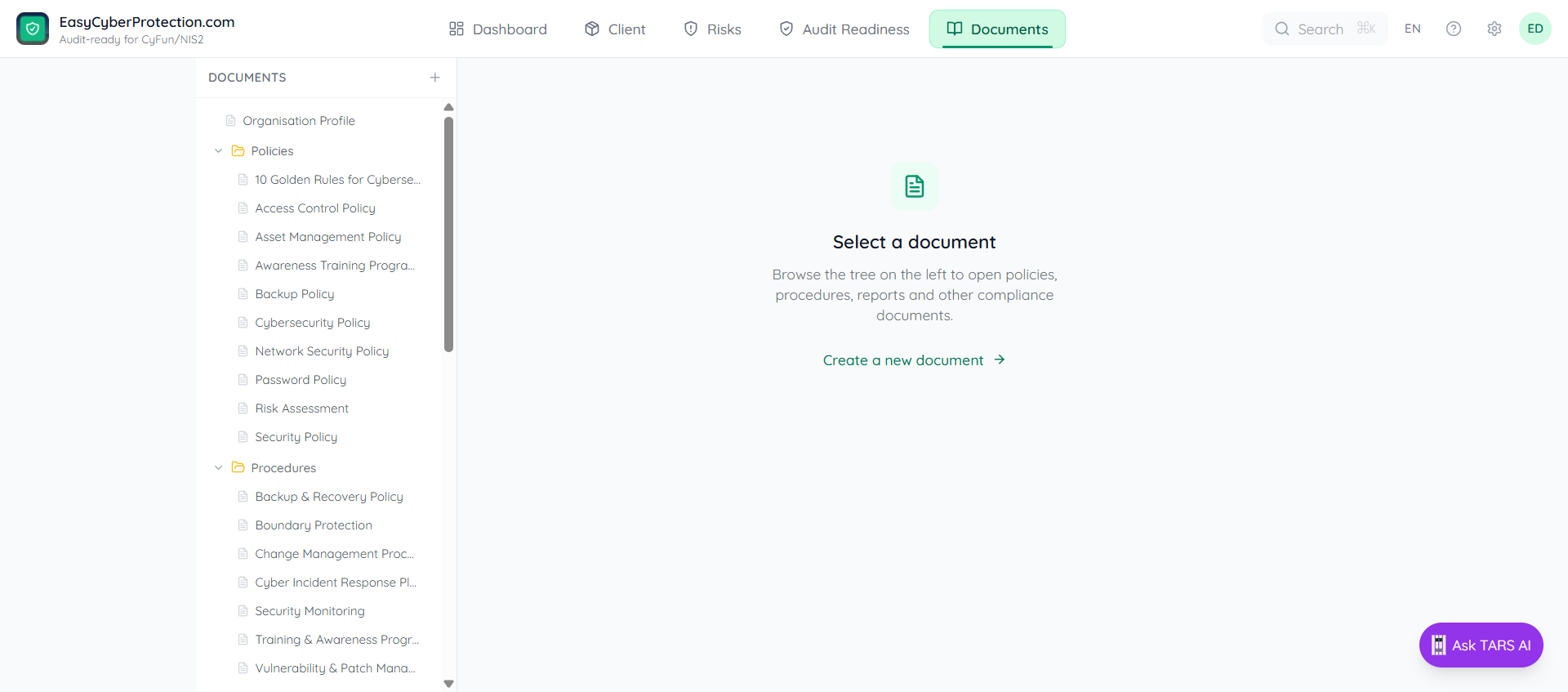
The Documents tab opens with a sidebar tree on the left and the document content on the right. Folders are collapsible; click a document name to open it. The Organisation Profile sits at the very top of the tree and holds your brand name, language, and other org-wide metadata.
Control pages (e.g. controls/cyfun-basic/gv/po-01-1) are not in the sidebar — they're reached from Audit Readiness or via the breadcrumb inside any control page.
Jumping from Audit Readiness
From the Audit Readiness tab, every failing control has an Upload evidence link. It lands you on the control page with the two-column evidence panel (Documentation / Implementation) pre-scrolled. See Fixing a failing control for the full walkthrough.
Editing documents
Every page is editable. Open a document and click Edit in the top-right. Pages use Markdown with structured placeholders: orange-highlighted fields need values before the page is considered complete, and the compliance engine tracks which are still blank.
Click Save to publish a new version. All versions are retained — open More → History to view or revert.
Creating new documents
Click the + (New document) button at the top of the sidebar, or the Create a new document link on the welcome screen. Give the document a title, pick a slug (the path in the tree), and start writing in Markdown.
Custom pages appear in the tree alongside framework-generated pages. Use a known prefix (reports/, plans/, registers/) to place the document in an existing folder, or invent a new top-level prefix to start a new folder.
Improve with AI / Generate Policy Draft
The More menu at the top of every page shows AI actions: Improve with AI (any page) and Generate Policy Draft (on control pages). TARS reads the current page, the linked controls, and the org context, then proposes improvements you can preview and accept.
Full guide: TARS AI assistant and Generate a policy draft.
Export a single page as PDF
Open any document, click More → Export PDF. The browser's print dialog opens — pick Save as PDF. The exported file carries the org name, page title, and date in the header, and preserves every custom block (placeholders, evidence, todos, registers).
For a complete audit bundle, use the CCB zip export on the Audit Readiness tab instead — see Exporting for the CAB auditor.